



Key Questions
Common questions about when and how to use the Quote & Invoice tool
- For bookings that require a client-facing invoice
- Bookings where you need to add multiple services to calculate the total cost
- It is best used where all services are supplied by one supplier (i.e. one DMC), or you are combining a number of services that are all being paid nett with no dominant supplier (e.g. a few smaller hotels with a local tour)
- It will not be used in every booking or scenario — it is designed to make standard trip invoicing simpler
- If it is a direct booking with a supplier where we are invoicing for commission, you do not need to use this and will load that the normal way in the Tracker
- Yes — the Google Sheets tool will still be available in the templates on the drive
- This will be useful for very complicated bookings where you need lots of flexibility for the options and calculations
- Ideally, create separate Quotes/Invoices for each DMC and push them into the same trip — however this means you won't be able to send one invoice for the total trip
- You can create one Quote/Invoice for multiple DMCs — but please note that when you push the trip into the Tracker, you will select one Primary Supplier and the trip value will be allocated to them
- You can create the Quotes/Invoices in the tool for internal reporting and use the Google doc invoice to send one overall invoice if needed
When adding a new travel service booked via a Tour Op or Wholesaler:
- For Category select Hotel
- For Supplier select the actual hotel the client is staying at (e.g. Ikos)
- When you push the Invoice into the Tracker, in the Primary Supplier field select the Tour Op or Wholesaler (e.g. Limelight, Hummingbird, UJV)
- Once costs are finalised and the client has confirmed they are happy with the Quote, go back into the Quote and select the Invoice button in the Payments section
- You will then select the Payment Currency, Exchange Rate and Deposit Amount as well as due dates
- You can send this invoice to the client by clicking Export as PDF — please note this does not save the changes. You MUST click Save Quote
- Once you have updated the invoice and sent to the client, you can push the invoice into the Tracker
- IMPORTANT: Once you push the trip into the Tracker you will not be able to edit any of the details other than the total trip cost and commission %
- If you think you will need the individual details at a later stage, make a copy of your quote and leave it in the Quote dashboard
- The system does not auto save — if you exit the Quote/Invoice tool without saving you will lose your work. You MUST click Save Quote
- Clicking Export as PDF does not save the Quote/Invoice but will open it in a separate window
- Leave the Deposit as blank and enter the Balance due date
- If you enter a Deposit amount you will need to enter both a Deposit Due Date and a Balance Due Date
- You can enter the Terms & Conditions into the space provided in the Bank Details & Legal section — note that you are unable to format the text in that box
- If you have detailed T&Cs, we recommend creating a separate document on the Cartology Travel branded letterhead with all the details to send as an attachment with the invoice
Quote vs Invoice
Understanding when to use each and what the client sees
| Feature | Quote | Invoice |
|---|---|---|
| Shows itemised pricing | ✔ Yes | ✔ Yes |
| Shows bank account details | ✖ No | ✔ Yes |
| Currency displayed | Destination currency | Payment currency (GBP, EUR, USD, CAD) |
| Client can make payment | Not yet — no bank details shown | Yes — payment details included |
| Exchange rate required | No | Only if destination currency ≠ payment currency |
Decision Tree — Quote or Invoice?
This is intentional. Bank details are hidden on quotes to prevent clients from sending payment before the booking is confirmed and finalised. Once you're ready to take payment, you switch to an invoice, which includes the full bank details.
Building a Quote or Invoice
Adding line items, markup, and understanding the calculated fields
Each service in your trip is added as a separate line item. For each one, complete the following fields:
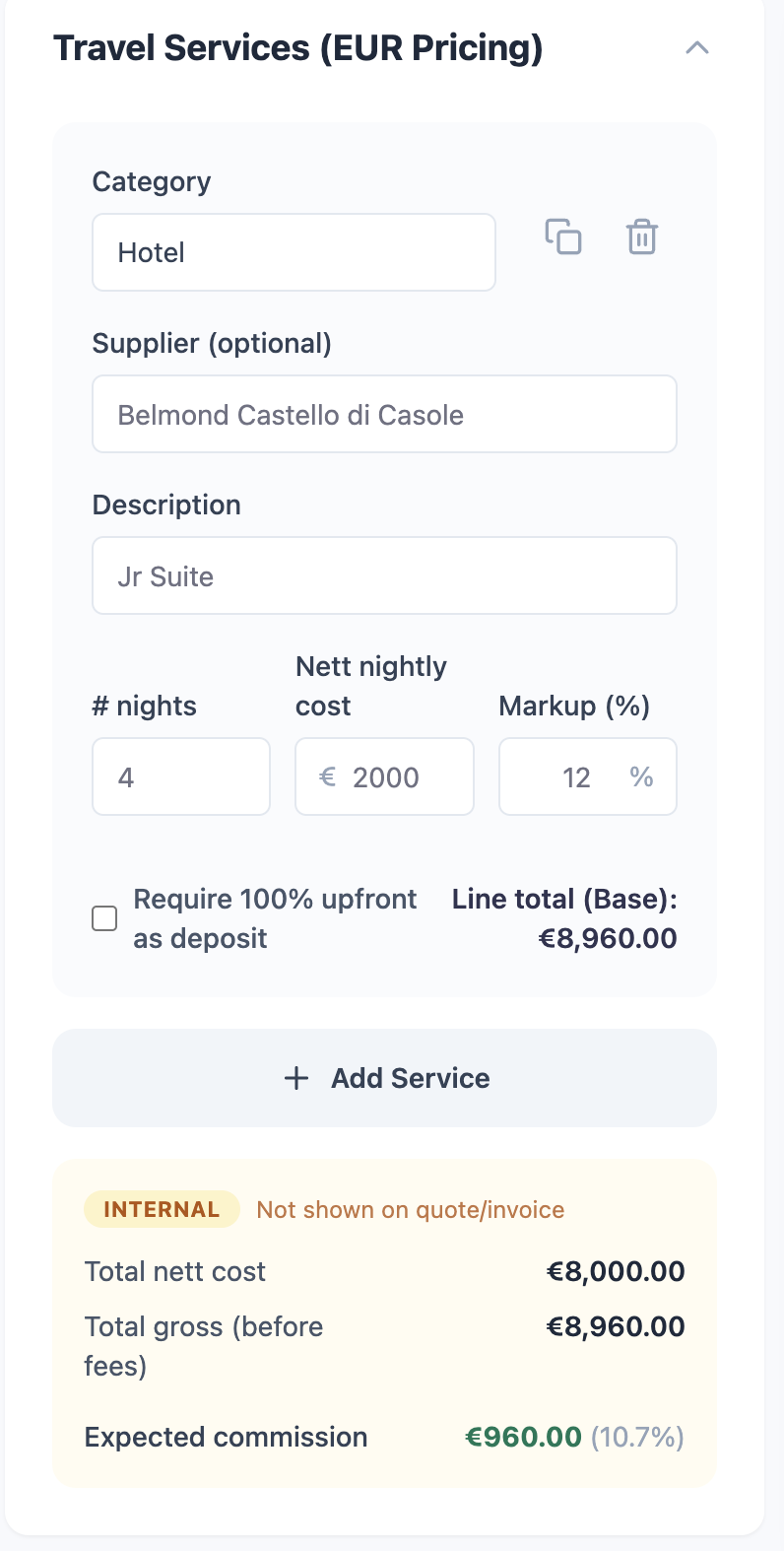
Please note that marking up from nett to rack will require a higher % vs starting from the gross/rack rate.
- You can copy a service by clicking the copy icon next to the delete button
- For "smaller" services like transfers, meet & greets etc. you can enter the DMC as the supplier
- Important: ensure hotels are selected in the supplier category
- If you have multiple rooms for the same hotel, you can either enter the total room nights as the quantity or have separate services. E.g:
- 2 rooms for 3 nights = Qty: 6, Nett: $500
- 2 × separate entries of Qty: 3, Nett: $500
- Tick "Require 100% upfront as deposit" for any costs that require full payment as part of the deposit (e.g. domestic flights, gorilla permits)
Currency & Exchange Rates
How destination currency, payment currency, and exchange rates work
Quotes are always displayed in the destination currency — the local currency of the country where the services take place. This lets the client see accurate pricing before you need to worry about payment currency.
When you create an invoice, you select the payment currency. We can accept payment in four currencies:
- 🇬🇧 GBP — British Pounds
- 🇪🇺 EUR — Euros
- 🇺🇸 USD — US Dollars
- 🇨🇦 CAD — Canadian Dollars
The Invoice will show the live exchange rate based on the rate we get — not the spot rate (which is the rate you will get if you google it).
If you would like to fix/set an exchange rate, please email accounts@cartologytravel.com with the following details:
- Trip ID
- Client Name
- Date of Travel
- Gross Amount
- Nett Amount
- Supplier Deposit Due Date
- Supplier Balance Due Date
Currency Selection Flow — Invoice Stage
Bank Accounts & Credit Card Fees
Selecting where payment goes and handling card surcharges
Bank accounts are available as a preset list — you simply pick the correct one for the currency or client. Once selected, the relevant account details (account name, number, sort code, IBAN, etc.) are automatically populated on the invoice.
- On the invoice, locate the Bank Account field
- Click to open the dropdown and select the appropriate account
- The account details will populate automatically
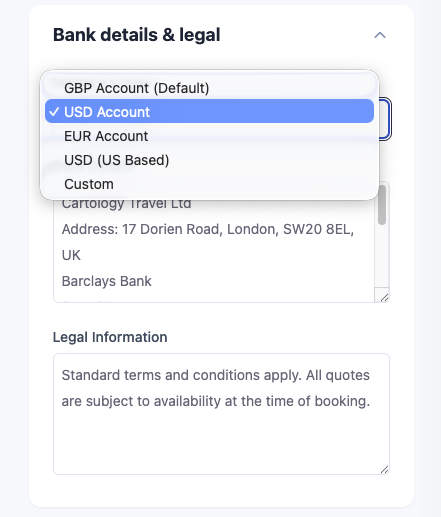
When a client is paying by credit card, select the relevant credit card payment scenario from the dropdown. The system will automatically calculate and apply the correct fee for that scenario.
- Navigate to Additional Fees
- Select whether you want to show the credit card fees as a separate line item or include them in the total cost
- Select the relevant scenario from the list — the fees will be calculated automatically
Linking to the Tracker
How to connect your quote or invoice to an existing trip
- Once you have confirmed the Invoice and generated the deposit invoice, only then do you push it into the Tracker
- When you push into the Tracker, you can select "Add to Existing Trip" and then search for the trip you want to add it to
- This is particularly helpful when you have a planning fee in the Tracker already
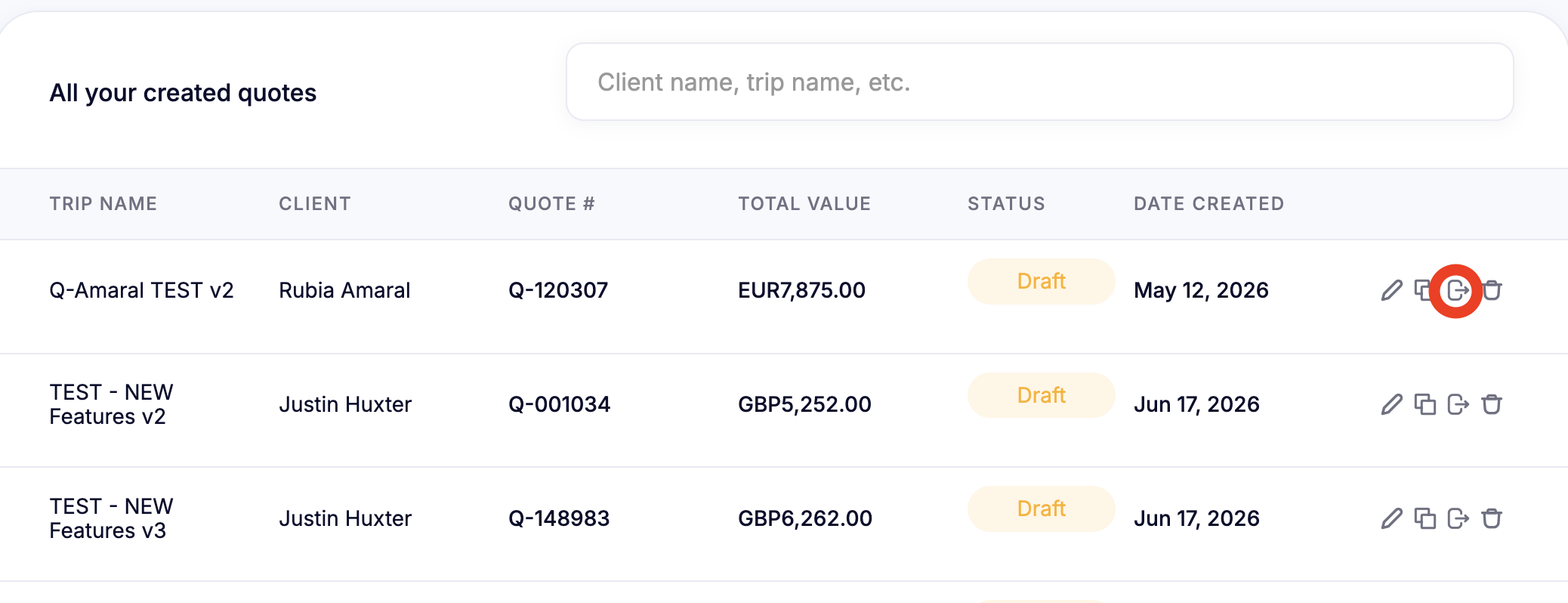
Yes, you can create the Quote or Invoice first then push it into the Tracker, choosing between creating a new Trip or adding it to an Existing Trip.
Editing & Amending
What you can and cannot change after confirming
No. Once a quote or invoice has been confirmed and moved into the Tracker, you cannot edit the underlying details — such as service type, service provider, line item structure, or markup. However, you can update the amounts.
Sending to Clients
Generating and distributing the PDF document
Once your quote or invoice is complete, use the Print to PDF button to generate a downloadable PDF. You then send this to the client via your usual method (email, etc.).
- Complete all line items and fields on the quote or invoice
- Click Export as PDF
- Save or download the generated PDF
- Send to the client via email
| Content | Quote PDF | Invoice PDF |
|---|---|---|
| Itemised services and pricing | ✔ Yes | ✔ Yes |
| Pricing currency | Destination currency | Payment currency (GBP/EUR/USD/CAD) |
| Bank account details | ✖ Not shown | ✔ Shown |
| Credit card fee (if applicable) | ✖ Not shown | ✔ Shown |
| Exchange rate (if applicable) | ✖ Not applicable | ✔ Shown |
| Payment instructions | ✖ Not included | ✔ Included |